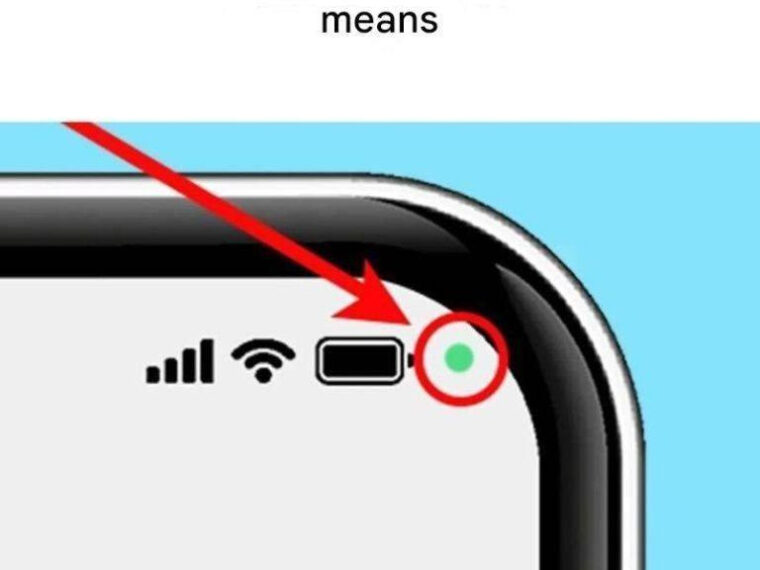
You unlock your phone.
You glance at the top-right corner.
And there it is.
A tiny green dot.
No notification sound.
No pop-up warning.
Just a small green circle quietly glowing beside your signal and battery icons.
At first glance, it feels mysterious. Is it a virus? A hidden feature? A malfunction?
Relax.
It’s none of those.
In fact, that little green dot is one of the most important privacy features added to modern Android phones — including Samsung devices and other Android models.
Let’s break down exactly what it means, why it exists, and what you should do when you see it.
The Green Dot: A Privacy Indicator
The green dot is a privacy alert indicator.
When you see it, it means:
An app on your phone is currently using your camera, microphone, or both.
That’s it.
No secret spyware.
No hidden hacking.
No system malfunction.
It simply means your phone’s sensors are active.
Why Did Android Add This Feature?
For years, users worried about something uncomfortable:
Could apps access the camera or microphone without us knowing?
To address these concerns, Android introduced visual indicators starting with Android 12.
Samsung and other manufacturers adopted the feature as part of their system interface.
The goal is transparency.
If something is recording audio or video, you deserve to know immediately.
Instead of hiding in background settings, Android shows you clearly.
That green dot is your signal.
How It Works
When an app accesses:
- The camera
- The microphone
- Or both
A green indicator appears in the top-right corner of your screen.
Initially, a small icon may briefly show whether it’s the camera, microphone, or both.
After a moment, that icon shrinks into the small green dot.
It remains visible as long as the sensor is in use.
Once the app stops accessing those features, the dot disappears.
Is It Always a Problem?
Not necessarily.
If you are:
- On a video call
- Recording voice notes
- Using the camera
- Scanning documents
- Using voice assistant
Then the green dot is expected.
It simply confirms the feature is active.
But if you see the dot when:
- You are not using your camera
- You are not recording audio
- You are not on a call
Then it’s worth checking.
How to Check Which App Is Using It
If the green dot appears and you’re unsure why:
Follow these steps:
- Swipe down from the top of your screen to open the notification panel.
- Tap on the green indicator (or look at the privacy usage notification).
- A small dialog box will appear.
- It will show which app is currently using the camera or microphone.
Android makes this process simple.
You don’t have to search deeply through settings.
What If You Don’t Recognize the App?
If you see an unfamiliar app using your microphone or camera:
Do not panic.
Take these steps:
- Go to Settings
- Tap Privacy
- Tap Permission Manager
- Select Camera or Microphone
- Review which apps have access
You can then:
- Remove permission
- Restrict access to “Only while using the app”
- Set it to “Ask every time”
If you no longer use the app, uninstall it.
It’s that simple.
Why Android Uses a Green Dot (And Not Multiple Colors)
Apple uses:
- Green for camera
- Orange for microphone
Android chose a single green dot for both.
Instead of color-coding, Android provides detailed info when you expand the notification panel.
Functionally, both systems serve the same purpose:
Real-time transparency.
Could It Be Malware?
Click page 2 to continue